Summary of online teaching tips from the presentation
We recommend watching the full video to see for yourself how the concepts and ideas can improve your online lessons. There’s a lot covered, but we’ll try to summarize the main points below.
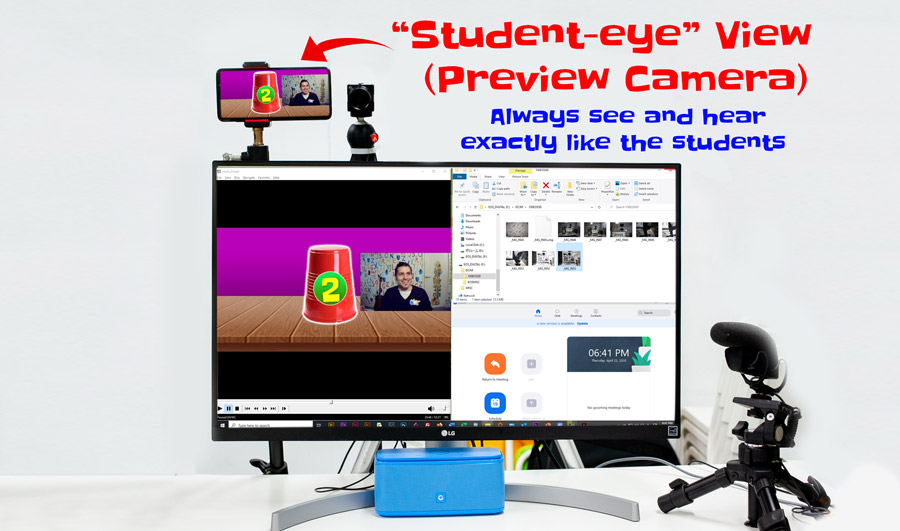
Joining as a “student” lets you see and hear exactly what your students are receiving. This was really helpful for us because at first, we had no idea what students were actually seeing on-screen. Are you actually sharing the screen you want students to see? Is your text mirrored or too difficult to read on small screens? Is there a lag between video and audio? All these technical issues can be spotted and fixed immediately if you can see the lesson through the eyes of your students. We use our smartphones to do this and select not to share video or sound. This lets us see and hear everything without distracting students.
2. Use a desktop or a laptop computer
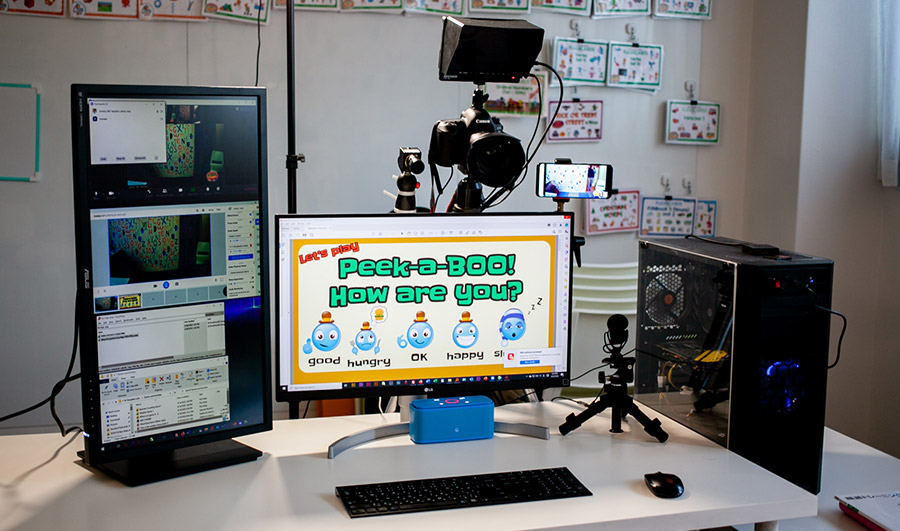
Tablets and smartphones are convenient and cheap, but they are limited when it comes to software. Computers generally allow for a more efficient and organized workflow with online lessons. We use Windows 10 on desktop computers with two monitors for all of our online teaching stations. This lets us prepare all materials on one monitor and use the other for screen sharing only. Doing this makes teaching much easier since you can always have your next activity prepared in another window.
3. Use a “shotgun” mic
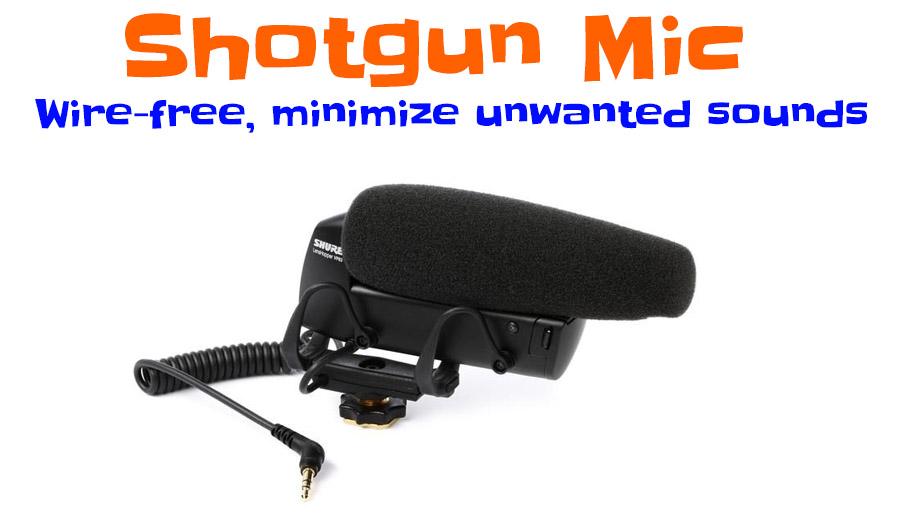
Although these tend to be a little more expensive, shotgun mics tend to have better sound quality with the freedom of not having a mic attached to you or next to your face. They can be pointed in the direction of the speaker and significantly reduce background noise and unwanted sounds. This also means the teacher doesn’t need to speak into a mic 2 inches from his or her head or worry about more wires from lapel mics. We use the Shure VP83 model because of its outstanding sound quality and battery life.
NOTE:
Watch out for lapel mics! These are great for phones, but they require a preamp which most computers don’t have. This means your audio will be too quiet to use with Zoom or Skype. If you’re unsure about whether or not you can use a mic, check to see that it has USB power or a battery. If it does, it should be compatible with any device.
4. Avoid Bluetooth + wireless mics and audio
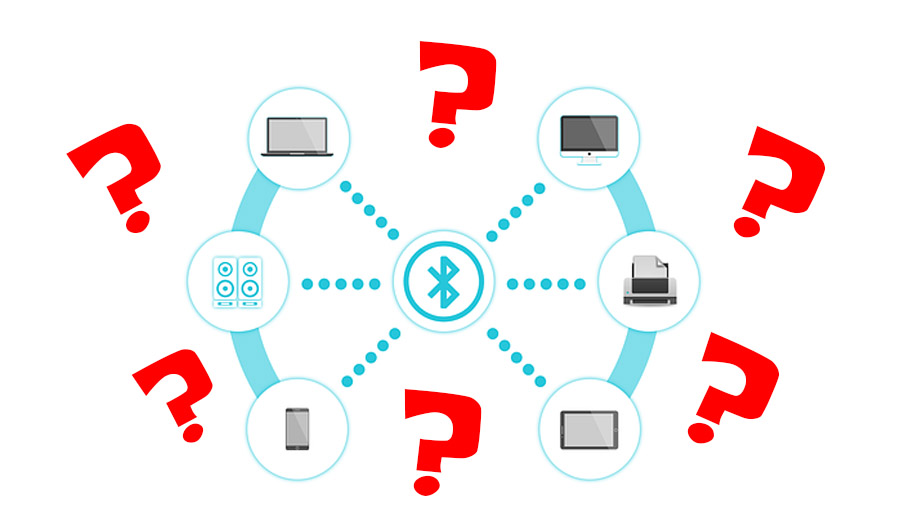
Wireless and Bluetooth devices tend to complicate things and create more problems than they solve. It’s best to use mics, earphones, headsets, and any other audio devices which are connected by wires. Also avoid battery powered/rechargeable devices. If your devices can be powered by an AC adapter or power from your computer, it will be one less thing that can go wrong during your lessons.
5. Avoid Screen Sharing with Zoom. Use a “Virtual Desktop” Instead
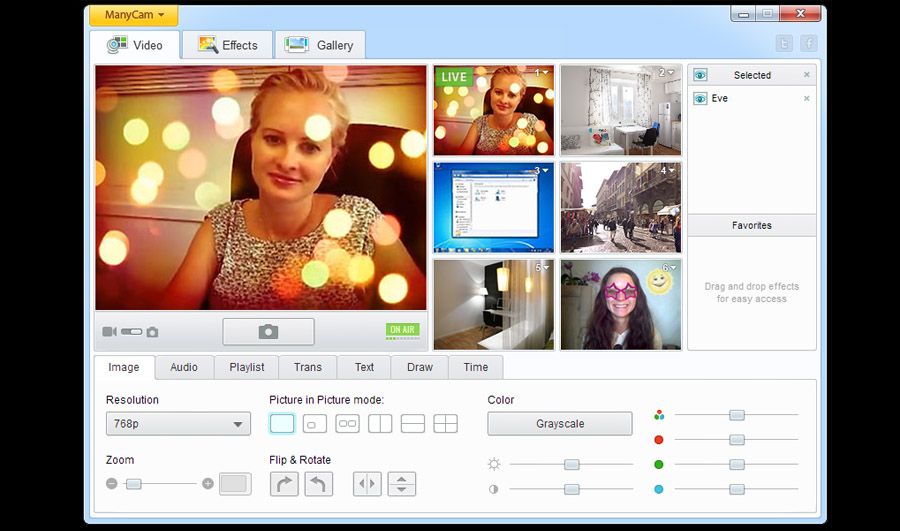
Sharing screens causes software to send twice as much data (camera data and shared screen data). This causes delays and lag issues for most users. Instead, it’s better to send this data to your web camera using virtual desktop software like ManyCam, SparkoCam, or VLC media player. Jeremy uses ManyCam in the presentation video above and never touches Zoom for the whole 90-minute presentation. All the screen sharing, smooth transitions, and picture-in-picture are features of the virtual desktop.
6. Simplify your lesson plans and avoid multiple programs, websites, apps

A simple and well-organized lesson is much easier to successfully complete. The more apps, websites, and extra software you use, the greater your chances of running into problems. Long page-load times, possible unwanted content (ads, etc.), and a higher chance of software crashing should be avoided at all cost. Skip to the 16:02 minute mark in the video above to see how we plan our own lessons which don’t rely on a YouTube or other apps. Best of all, we never have to deal with the cumbersome Zoom screen share function!
7. Use PDFs for flashcards, games, slideshows, conversation activities, attendance sheets, and MORE!
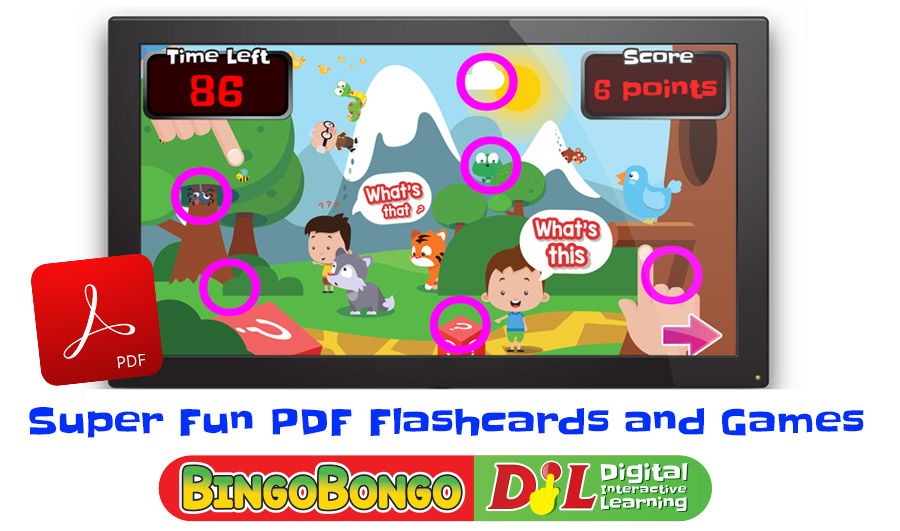
To avoid using extra apps and software, we’ve developed an entire teaching system based on PDF files. They’re lightweight, load instantly, can be edited and saved. They’re great for everything from games to flashcards and more!! From the 39:27 point in the video on, Jeremy introduces several PDF resources that have been the foundation of our successful online lessons.
8. Use pre-recorded videos as a replacement for handwriting on screens or checking homework
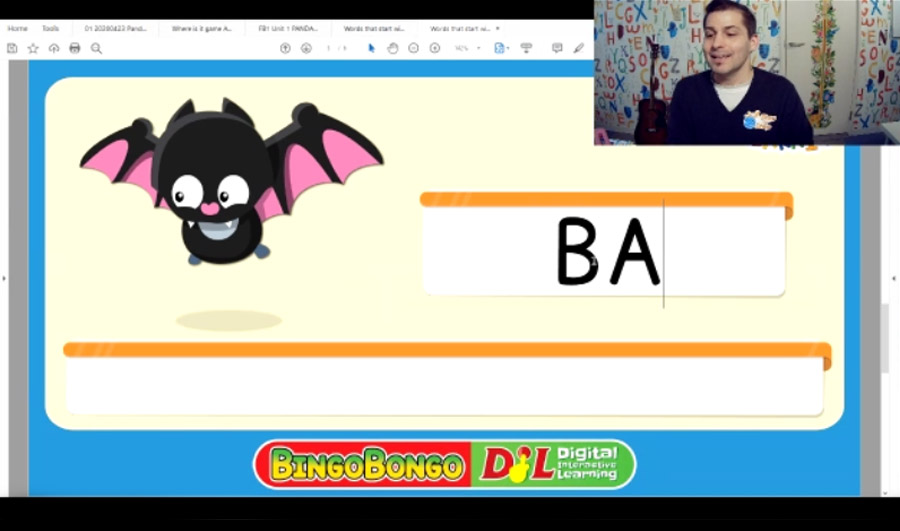
If your students use worksheets as part of the lesson, then recording a video of the writing section in advance lets you play the video as part of your lessons. On top of that, you can pause and play the video to set a good pace and explain the concepts and vocabulary as you go. If you don’t have enough time to finish the worksheets in the lesson, you can give the link of your pre-recorded homework videos to the student to watch. Using these videos, students can also check and grade their own homework. The video below is an example of pre-recorded worksheets from FUN!book 1: Super Easy ABCs and 123s (Spelling Time – B and Code Time – B)
9. The BBL Curriculum might be what you’re looking for
The BINGOBONGO Learning Curriculum currently has 3 levels with enough content for over 200 lessons for kids from 3 years old up to junior high school students. There are nearly 1000 worksheets with supplementary printable and digital flashcards, and videos of chants for all the vocabulary in the course. In the presentation video above, watch how Jeremy quickly plans and executes lessons with ease. For more information, take a look at BINGOBONGO Books, BINGOBONGO Printables, or BINGOBONGO Digital Interactive resources to find the perfect resources for your online lessons. Feel free to contact us to find out which resources are best for your situation.
More Online Teaching Tips to Come!
We hope this give teachers out there some fresh, new ideas to improve online English lessons. We’ll also keep striving to improve our lessons, and we can’t wait to share more online teaching tips with you soon. If you have thoughts/comments on any of these tips or know of any other ideas we should share, we’d love to hear from you.


