Thymio II Wireless Mobile Educational Robot is the perfect choice for anyone, young or old, to learn programming, robotics, engineering, and more. You can learn and discover using Thymio II’s 6 “codeless” modes, 6 popular programming languages (including visual blocks), and its numerous sensors and functions.
Thymio II has an impressive list of sensors and features, compatibility with LEGO bricks, and a pen hole for programming-based art projects. That’s why it’s such a popular choice for programming courses for beginners to advanced students around the world.
Institutions and educators can also order the Thymio II Wireless Educator Bundle to get 5 Thymio II Wireless Creator Kits with a durable hard case and all the necessary setup and app installations taken care of.
Meet Thymio II, the powerful wireless educational robot!
Using Thymio is one of the best tools for teaching programming, robotics, and engineering to anyone from 3 to 100!
Thymio II Wireless Educational Robot is a powerful tool that can be used to teach everything from simple block-based programming (Scratch, VPL) to advanced text-based languages (Python, Aseba). Thymio II Wireless Educational Robot can also be used to teach robotics concepts with its impressive list of sensors, lights, and other features.
And if you’re not quite ready to jump head first into programming, Thymio II lets you explore the world of robots without the need for screens or code. Thymio II has 6 “codeless” modes that can be used to to learn about the robot and all of its lights and sensors. Following a black path on the ground, following your hand, reacting to sounds, and acting like a remote control car are a few of the things you can do with Thymio straight out of the box.
Thymio II Wireless Educational Robot also has some secret powers such as being able to communicate with other robots and balance on a ball without falling off. There are countless projects you can explore such as wireless robot-controlled marble mazes, a claw-machine game, super fast Thymio racers, a Thymio night light, a bubble spinning Thymio, remote dinosaur hunting via mobile webcam, a working anemometer (wind speed gauge), rain gauge, and so much more!
Check out the Thymio II Gallery here to see some of the great things you can do with Thymio. To get the instructions and programs to enjoy these projects and more, head over to MindMission.pro/thymio-projects
Start using Thymio II Wireless Educational Robot right out the box with 6 codeless modes!
Thymio II comes assembled and ready to use with 6 pre-programmed modes that don’t require any apps, devices, or programming knowledge. Thymio’s codeless modes are especially valuable for introducing robots to young children who might not understand the concept of programming but want to play with Thymio like a toy. They will be able to understand the way Thymio moves and works right away and have no problem jumping into code-based programming when the time is right.
To see each of the codeless modes in action, watch the video above. The 6 codeless modes are:
Explorer (Yellow mode) – Wanders around avoiding walls and obstacles like a robot vacuum
Follower (Green mode) – Follows your hand or anything else in front of it using IR sensors
Pathfinder (Light blue mode) – Follows a black line such as marker or black tape on the ground
Avoider (Red mode) – Runs away from your hand or other objects and “screams” if it gets trapped
Listener (Blue mode) – Changes color and movements based on sounds or tapping the robot
Go on an art and engineering adventure with Thymio II as well!
STEAM education (Science, Technology, Engineering, Art, Math) is important for kids as they grow up in a constantly evolving world of technology. The Thymio II Wireless Educational Robot helps kids learn about each of the subjects in STEAM, but the engineering and art are especially exciting!
The pen hole in Thymio combined with some basic block-based programs will let you create an infinite number of artistic patterns and fractals. You can also make a simple program to change the colors on the robot based on motion. After that, you can turn off the lights and take pictures with long exposures to make some super impressive light paintings.
When you want to explore engineering concepts with Thymio, the sky is the limit. You can integrate Thymio with LEGO bricks, and with the BBbots LinkVest and LinkPin accessories, you will have even more options for creating cool and complex creations. With LinkVest, it’s also possible to connect other robot systems to Thymio such as the chopstick-based robotics system, Stick ‘Em.
How to start programming with Thymio II and the Thymio Suite software/apps
To find out more about each programming mode, check out any of the following links. You’ll be redirected to Thymio.org (English only). If you have other questions or need support in Japanese, please contact us.
How to teach programming in an English school or international school
It’s our mission here at BBbots.com to provide not only high-quality programming and STEAM resources, but also resources that are ideal for EFL/ESL students who might struggle with English. That’s why we’ve created the Thymio Quick Challenge Worksheets and Mind Mission ESL/EFL Programming Course.
Thymio Quick Challenge Worksheets are a great way to teach programming using VPL3 while teaching related English concepts at the same time. Each worksheet has a program written on it, and students must describe and write what happens in each step of the program. After filling in all the blanks and explaining the program using English, they can then write and test the program using Thymio to see if their answers are correct.
The Mind Mission Programming Course has a core topic for each mission and several worksheets and activities that focus on the concepts and vocabulary without using Thymio or doing any programming. After studying the concepts and vocabulary, students can then make more complex projects using Thymio and writing the necessary programs. Each mission can be done over several lessons, and the programming projects vary from using codeless modes to advanced engineering and programming concepts.
Frequently Asked Questions
You can check out the list of frequently asked questions here. If you can’t find the answer there, you can check out the FAQ section at Thymio.org (English only) or contact us anytime.
追加情報
重さ
.27 kg
サイズ
11 × 11.2 × 5.3 cm
Thymio Version
Thymio II Wireless (Basic Kit), Thymio II Wireless (Creator Kit), Educator/Institution Bundle
Technical
Thymio II: A robot with a mission!
Thymio II Wireless Educational Mobile Robot is the second generation of the Thymio Robot. Both were developed in a collaboration between the Ecole Polytechnique Fédérale de Lausanne (EPFL) and the Ecole Cantonale d’Art de Lausanne (ECAL).
Thymio II is fully Open Source (software and hardware) because the main objectives of the Thymio II project are to provide a versatile robot to a greater number of people, to make programming and robot technology accessible to everyone, and to give users of all ages a way to learn using a simple approach.
Sensors and actuators
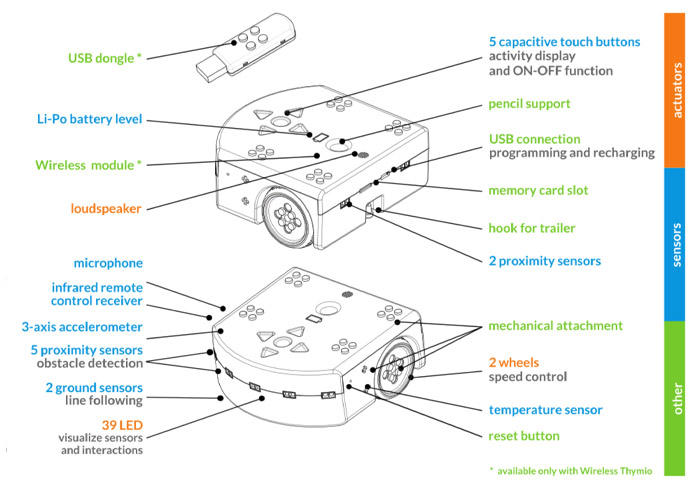
The Thymio IIWireless Robot has several sensors, actuators, and ways for humans to interact with it (human-interface modalities):
Developed by Google, Blockly is an ideal bridge between a visual and a text programming language. Assemble visual blocks that have the power of text programming.
Aseba Studio is a component of Aseba designed to program robots such as Thymio through text. It allows a higher level of control than visual programming.
Aseba-Scratch is a software link between Scratch 2 and the Thymio II robot. This allows Thymio II to be controlled using programs written in Scratch 2.
Aseba and Thymio’s firmware are open source and released under the LGPL.
FAQ
How to program Thymio with a tablet
Thymio Suite Mobile can be installed on tablets (iOS and Android). However, Thymio robots cannot be connected directly to the tablet; a relay computer is needed. This relay computer should also run Thymio Suite; then you will be able to see on your tablet the same list of available robots as on your computer. It works with both real and simulated robots.
Easy steps to get Thymio Suite up and running on tablets
Install & launch Thymio Suite on computer
Downloads
How to start programming with Thymio II and the Thymio Suite software/apps
To find out more about each programming mode, check out any of the following links. You’ll be redirected to Thymio.org (English only). If you have other questions or need support in Japanese, please contact us.
Out of the box, your Wireless Thymio robot and its dongle are correctly configured and ready to use. There is no need to configure anything for normal use!
If you want to create a network with several Thymio connected together and on one single dongle, you must satisfy the following conditions:
All the robots must be on the same channel.
All the robots must have the same network identifier.
Each robot must have a different and unique node identifier. Do not modify this value!
Note: We advise not to group more than 6 robots in one network with one single dongle (with firmware 13+ and Thymio Suite)
If you want to program different robots independently each with one dongle, you must satisfy the following conditions:
Spread the different robots you use at the same time on the three channels.
Each robot must have a different and unique network identifier.
Each robot must have a different and unique node identifier. Do not modify this value!
How to pair the robots and dongles
Plug your dongle into your computer.
Open the “Wireless Thymio Network Configurator” (in the tools when you start Thymio Suite).
Choose a channel either 0, 1 or 2 (it must be the same channel for robots in the same network. default channel is 1).
You can choose a network identifier (default 0x404F).


 Visual programming (VPL) and VPL3 have been specially designed to make programming Thymio easier by visually assembling event and action blocks.
 Developed by Google, Blockly is an ideal bridge between a visual and a text programming language. Assemble visual blocks that have the power of text programming.
 Aseba Studio is a component of Aseba designed to program robots such as Thymio through text. It allows a higher level of control than visual programming.
 Aseba-Scratch is a software link between Scratch 2 and the Thymio II robot. This allows Thymio II to be controlled using programs written in Scratch 2.


